
HWiNFO Logging — Step-by-Step With Screenshots
Never used HWiNFO before? No problem. This guide shows you every single click — from launching the program to getting your AI-powered analysis results. 24 annotated screenshots, zero guesswork.
Total time: ~15 minutes (2 min setup + 10–15 min gaming).
Before You Start
You Need
HWiNFO64 (free) installed or extracted on your PC
Then You'll
Play 10–15 min of the game where you have FPS issues
Part 1: Launch HWiNFO
Right-click the HWiNFO icon
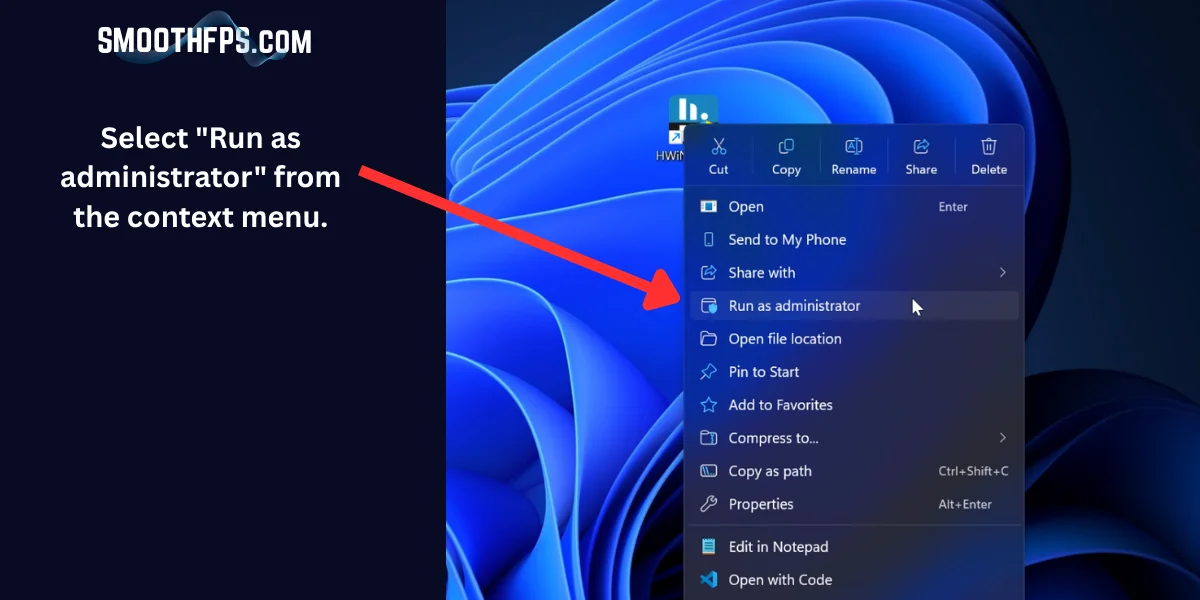
Right-click the HWiNFO 64 icon on your desktop.

Run as administrator
Select "Run as administrator" from the context menu.
Part 2: Configure Sensors-Only Mode
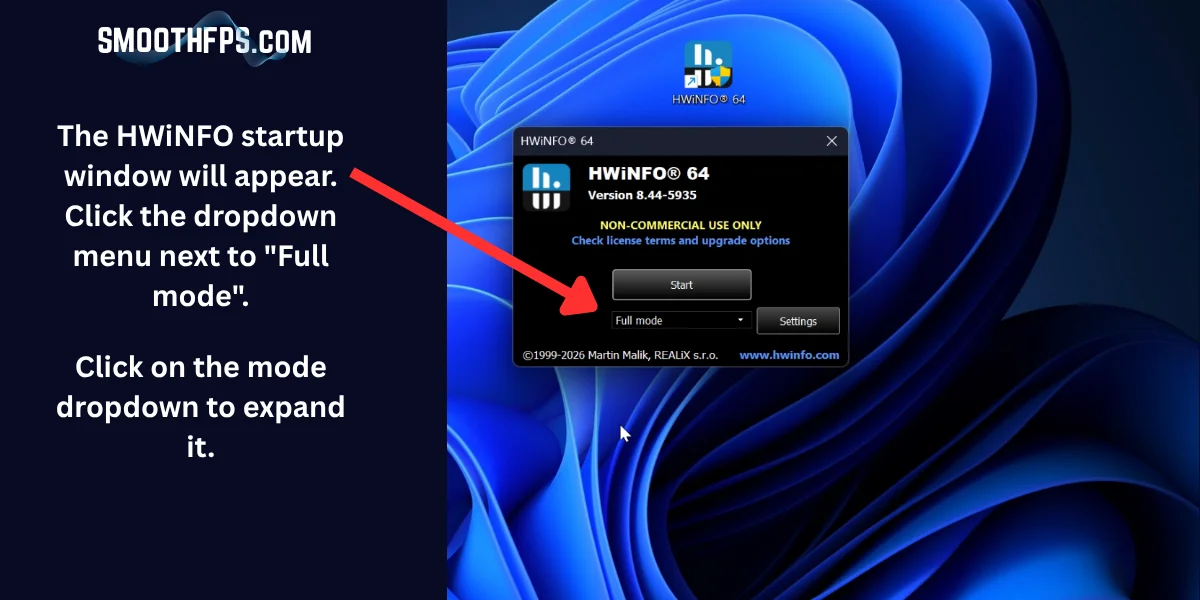
Open the mode dropdown
The HWiNFO startup window will appear. Click the dropdown menu next to "Full mode" to expand it.
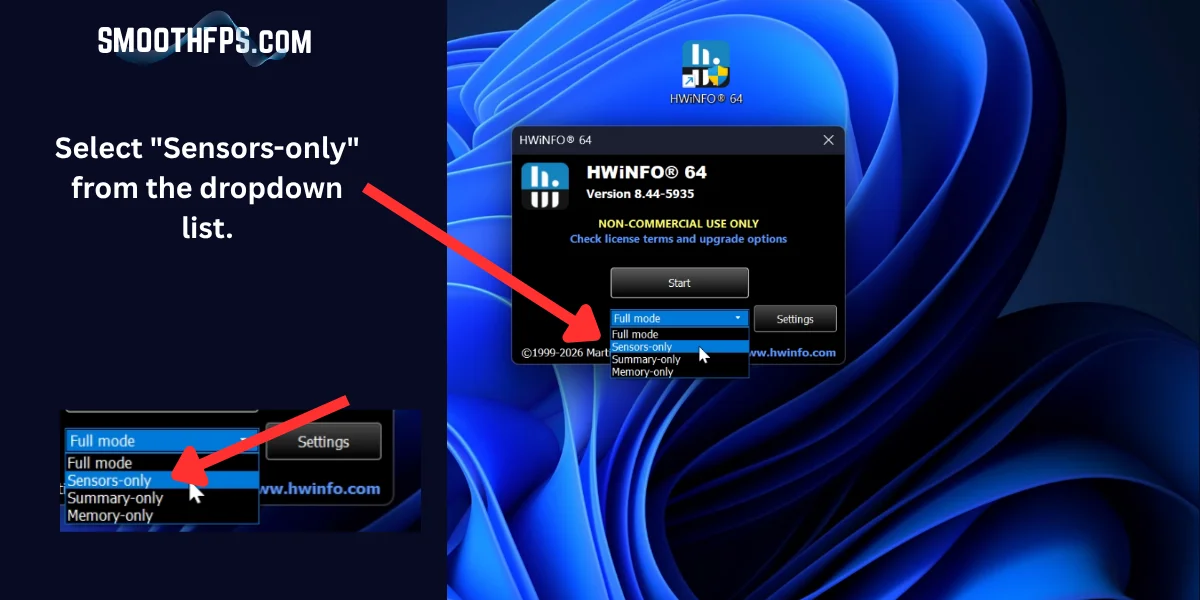
Select Sensors-only
Select "Sensors-only" from the dropdown list.
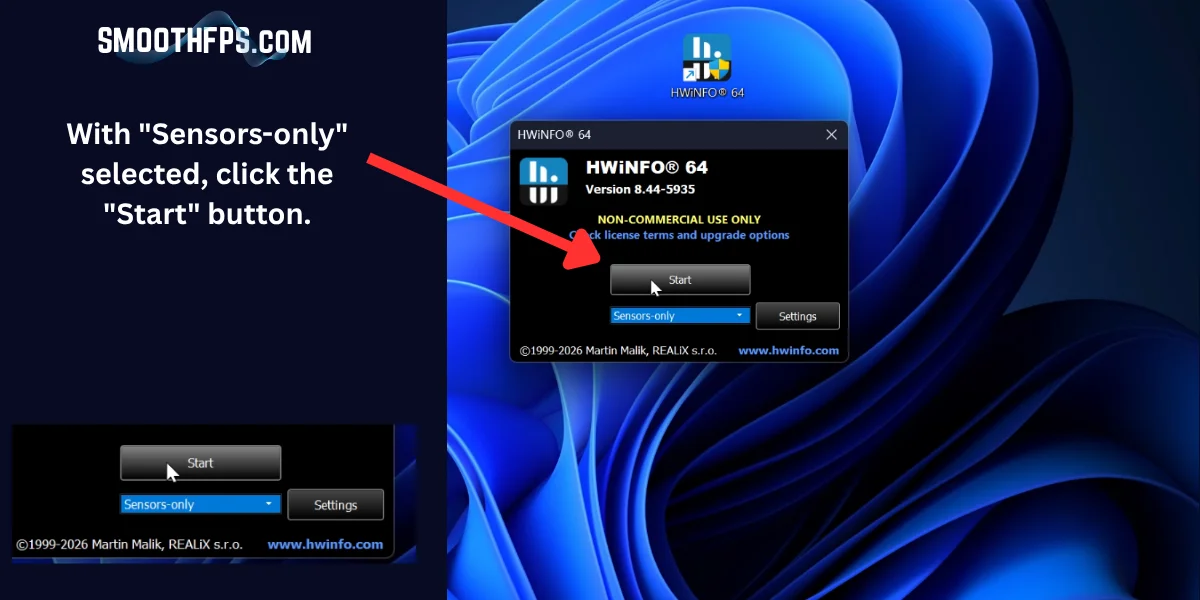
Click Start
With "Sensors-only" selected, click the "Start" button.
Part 3: Set the Polling Period
Open Configure Sensors
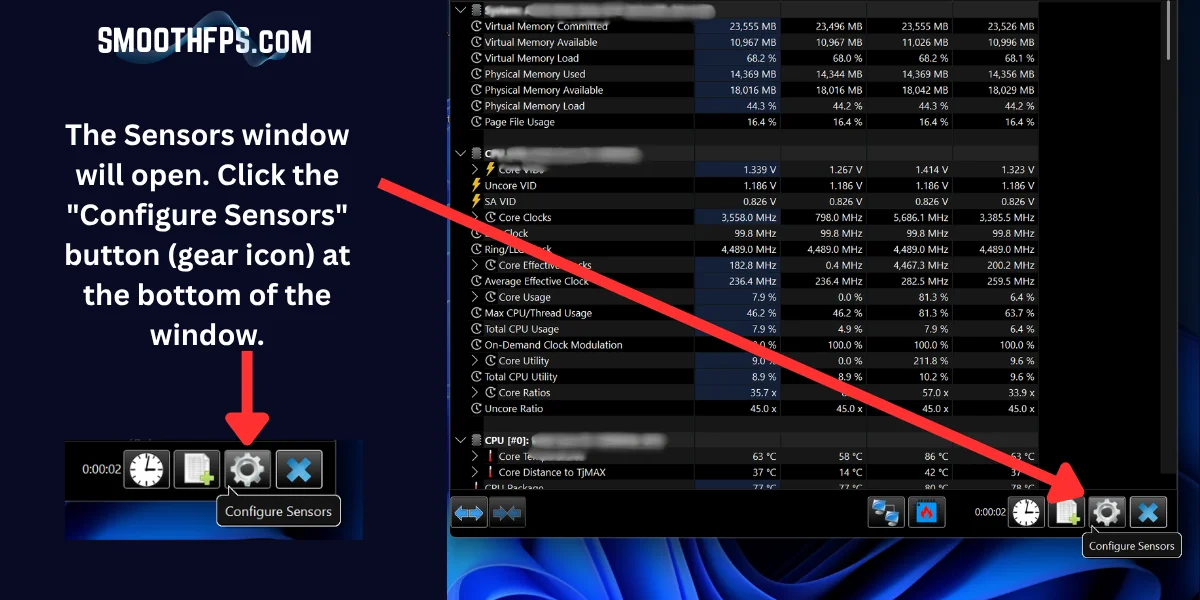
The Sensors window will open. Click the "Configure Sensors" button (gear icon) at the bottom of the window.
Set polling to 2000ms
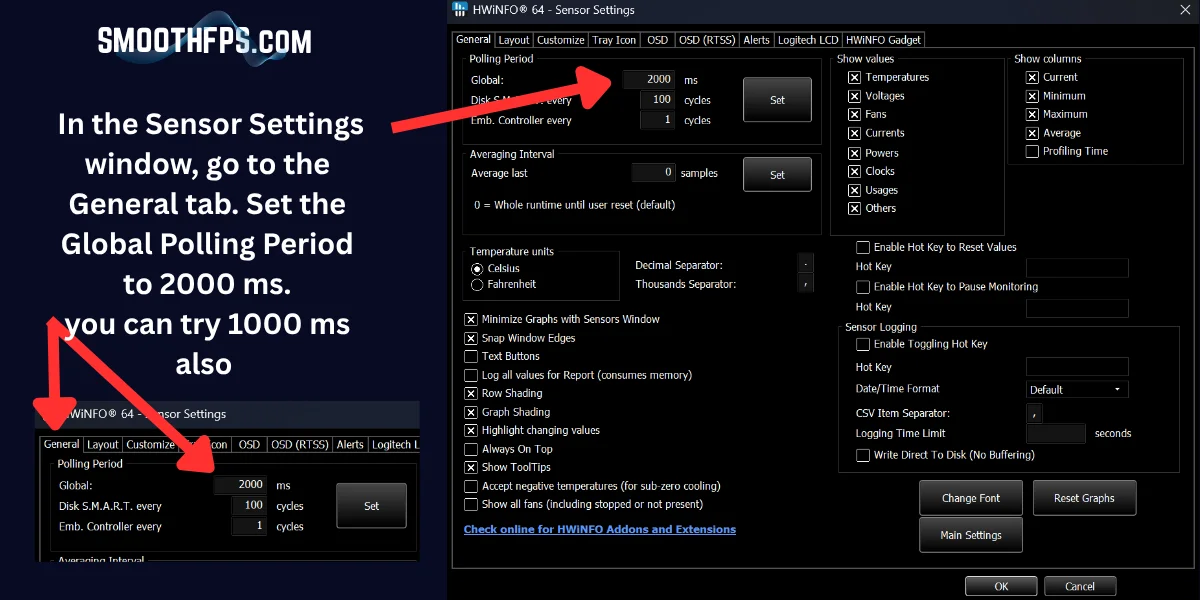
In the Sensor Settings window, go to the General tab. Set the Global Polling Period to 2000 ms.
Click Set
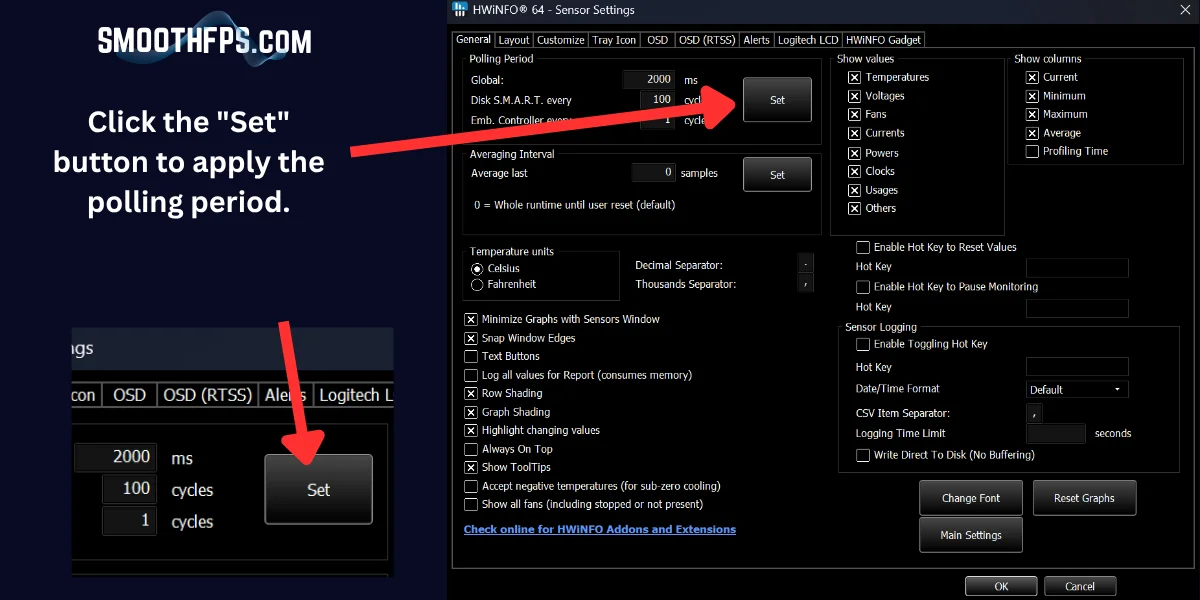
Click the "Set" button to apply the polling period.
Click OK
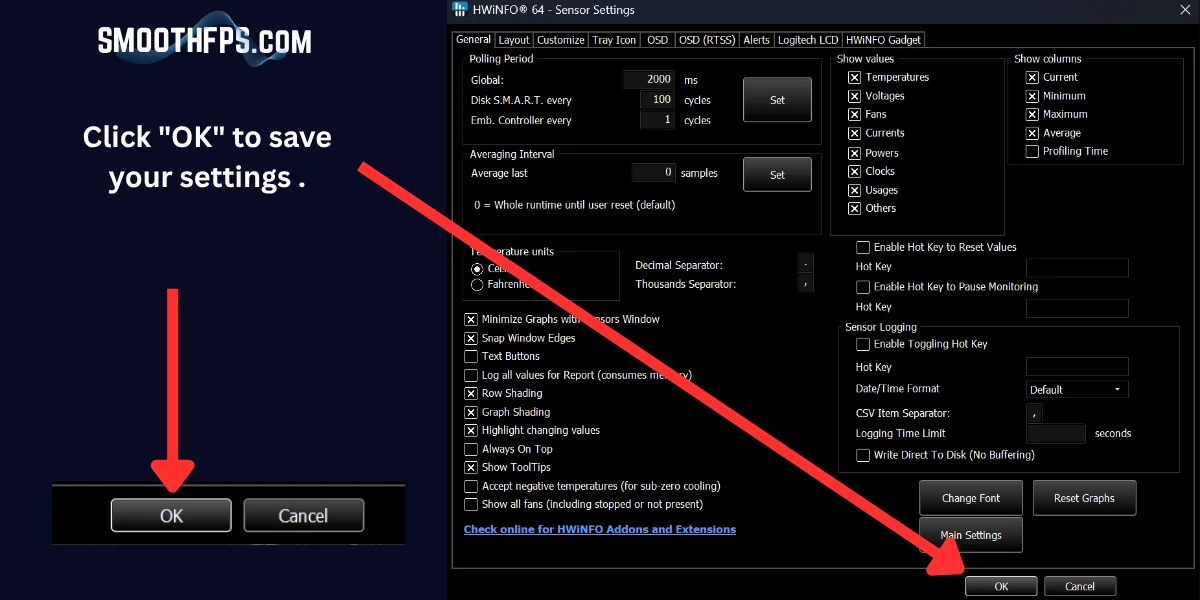
Click "OK" to save your settings and close the configuration window.
Part 4: Start Logging
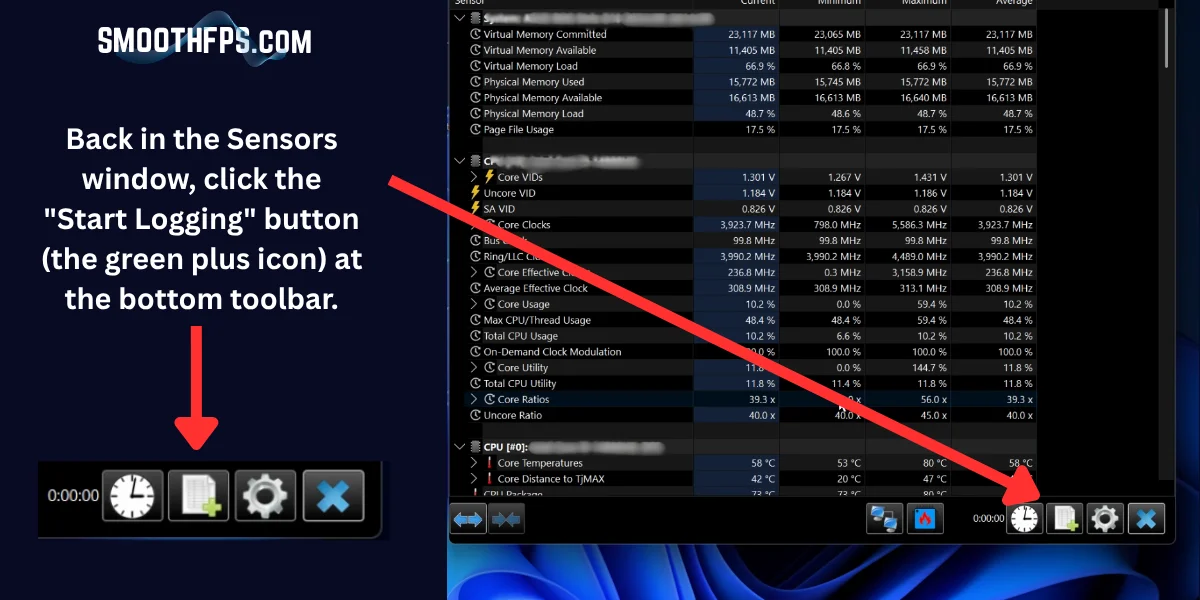
Click Start Logging
Back in the Sensors window, click the "Start Logging" button (the green plus icon) at the bottom toolbar.
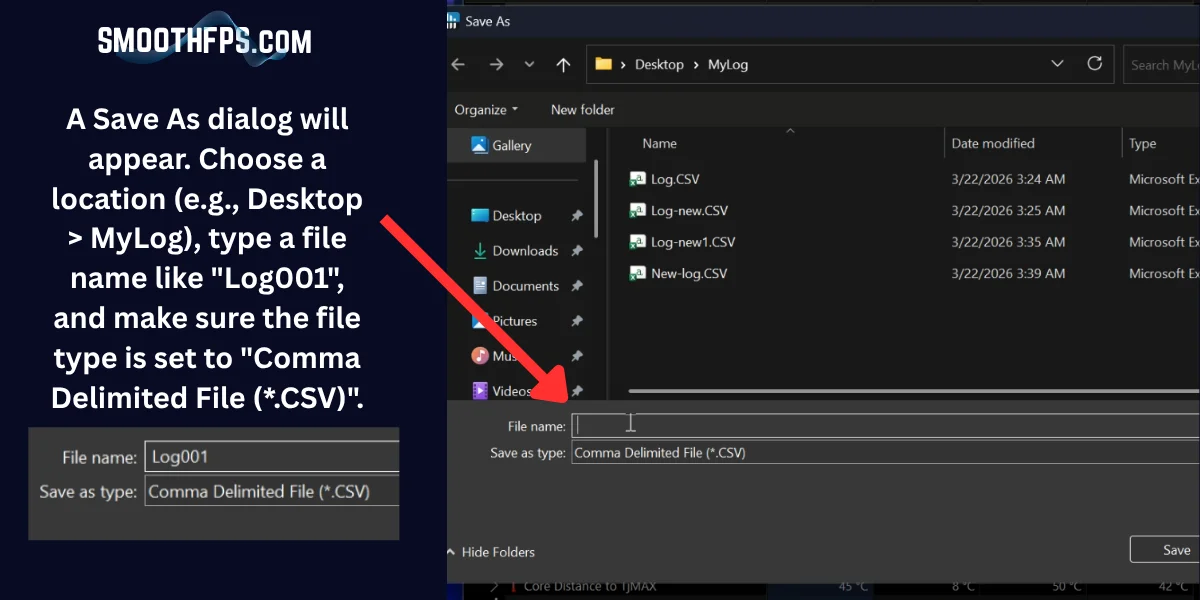
Choose save location
A Save As dialog will appear. Choose a location (e.g., Desktop), type a file name like "Log001", and make sure the file type is set to "Comma Delimited File (*.CSV)".
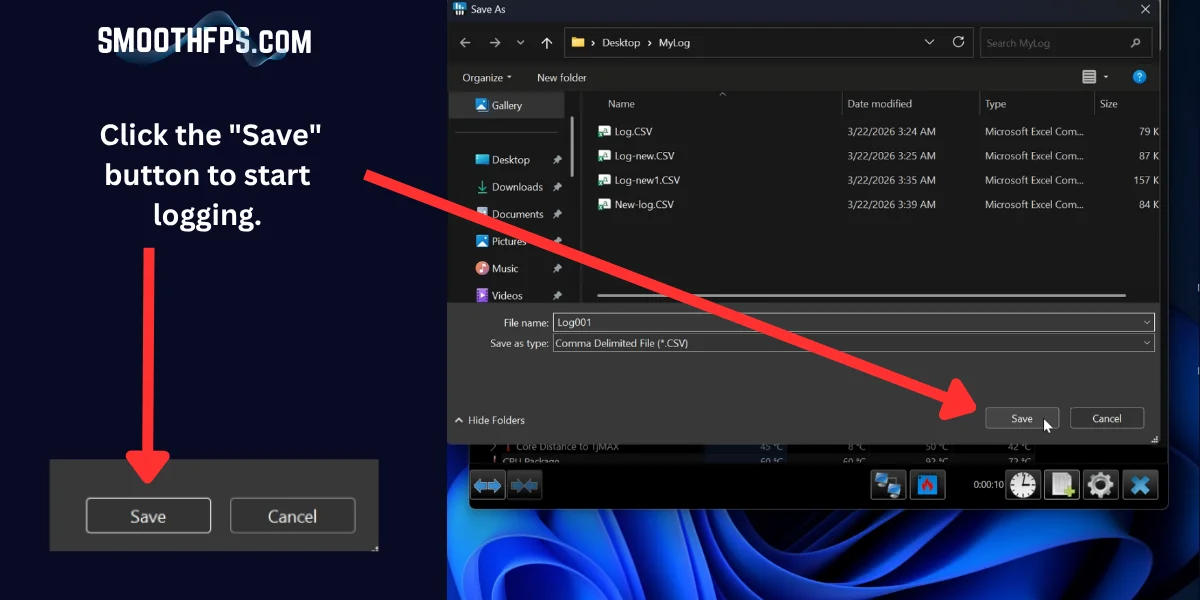
Click Save
Click the "Save" button to start logging.
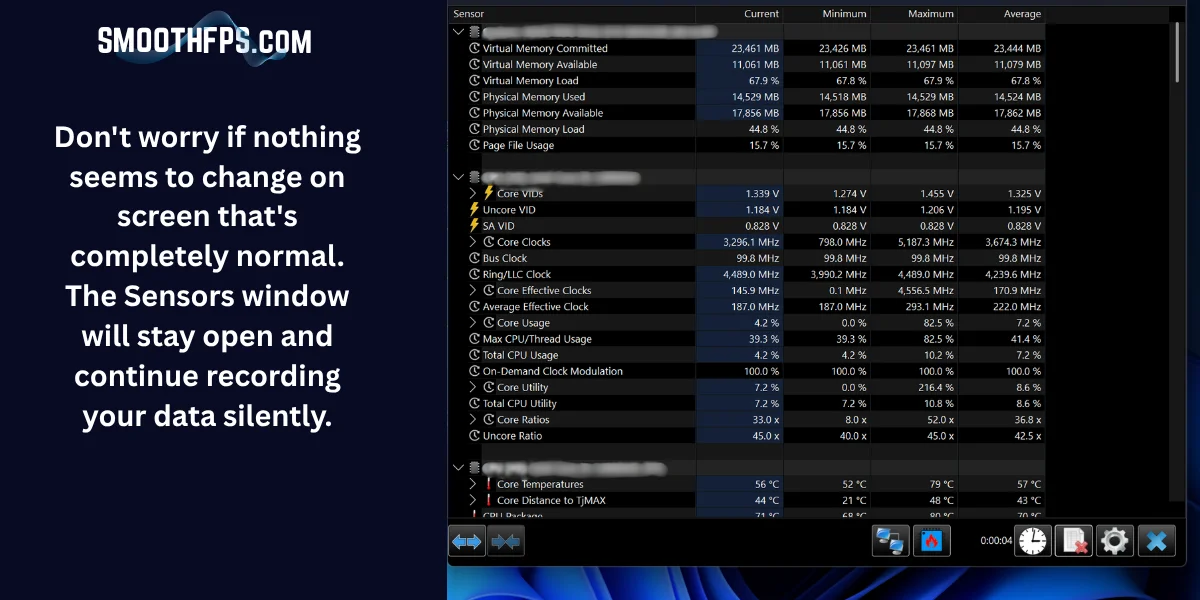
Logging is running silently
Don't worry if nothing seems to change on screen — that's completely normal. The Sensors window will stay open and continue recording your data silently in the background.
Part 5: Play Your Game
Launch your game
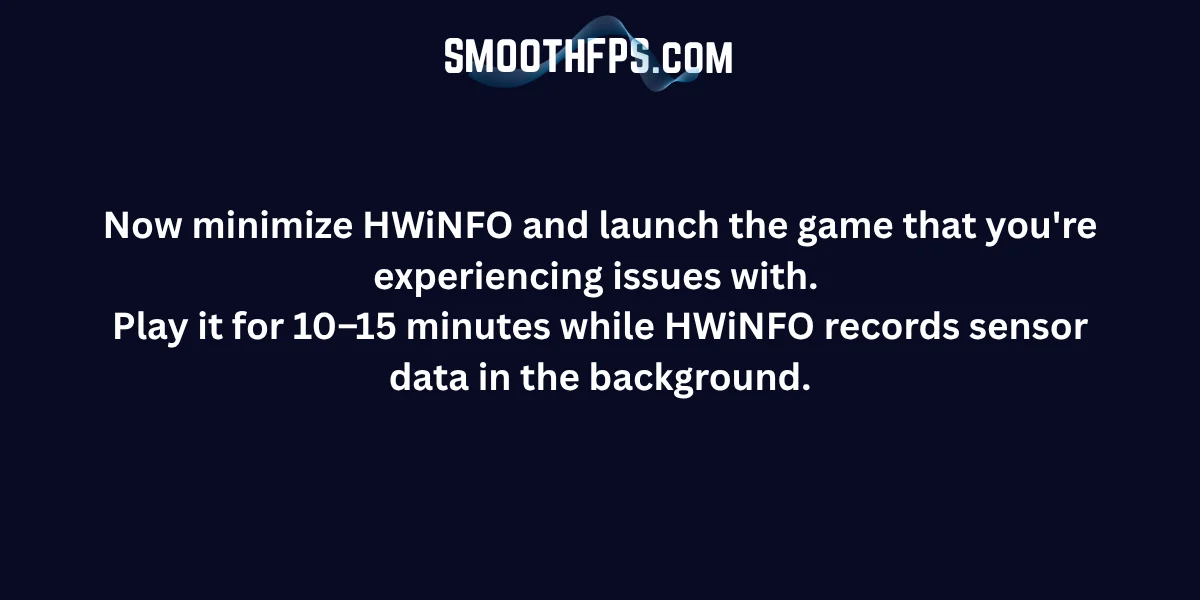
Minimize HWiNFO and launch the game you're experiencing issues with. Play for 10–15 minutes while HWiNFO records sensor data in the background.
Part 6: Stop Logging & Close
Stop logging
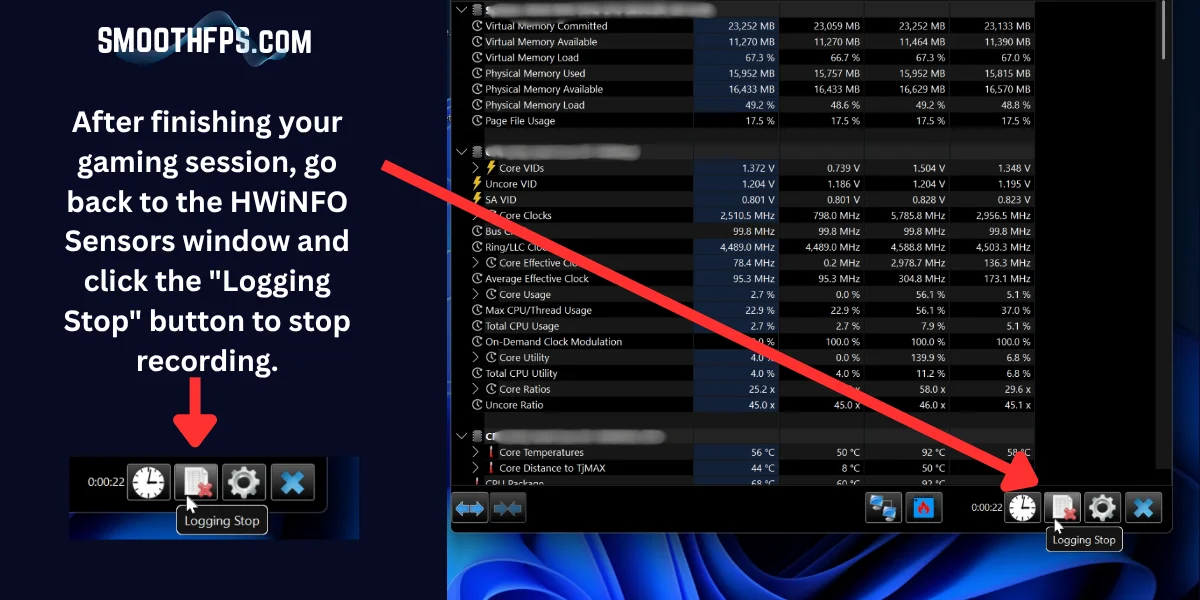
After finishing your gaming session, go back to the HWiNFO Sensors window and click the "Logging Stop" button to stop recording.
Close HWiNFO
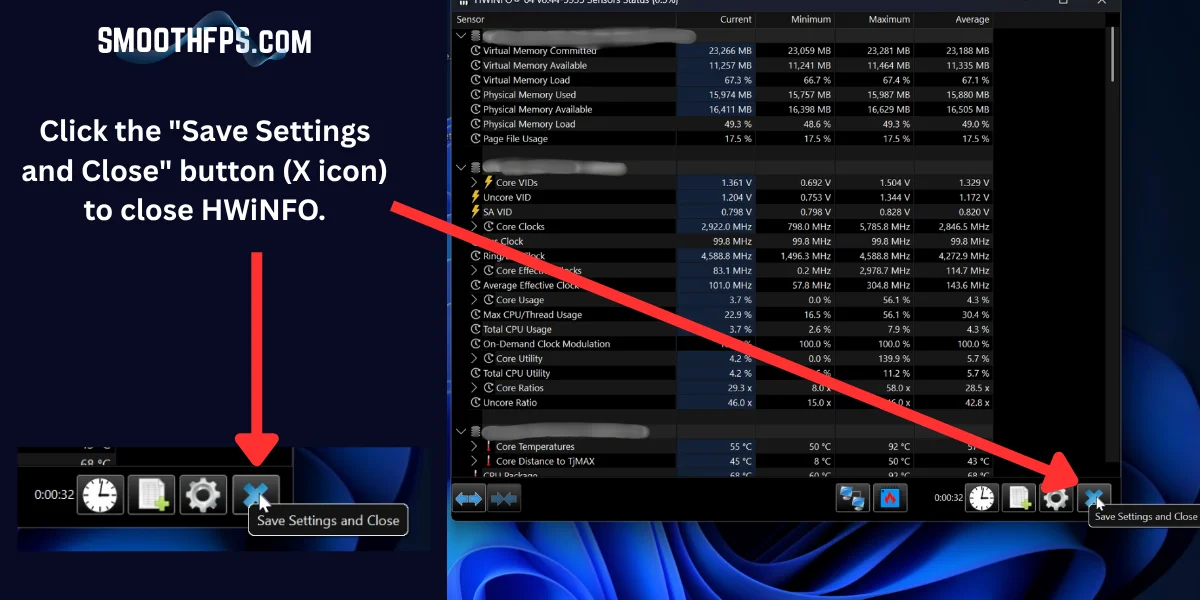
Click the "Save Settings and Close" button (X icon) to close HWiNFO.
Part 7: Upload to SmoothFPS
Find your log file
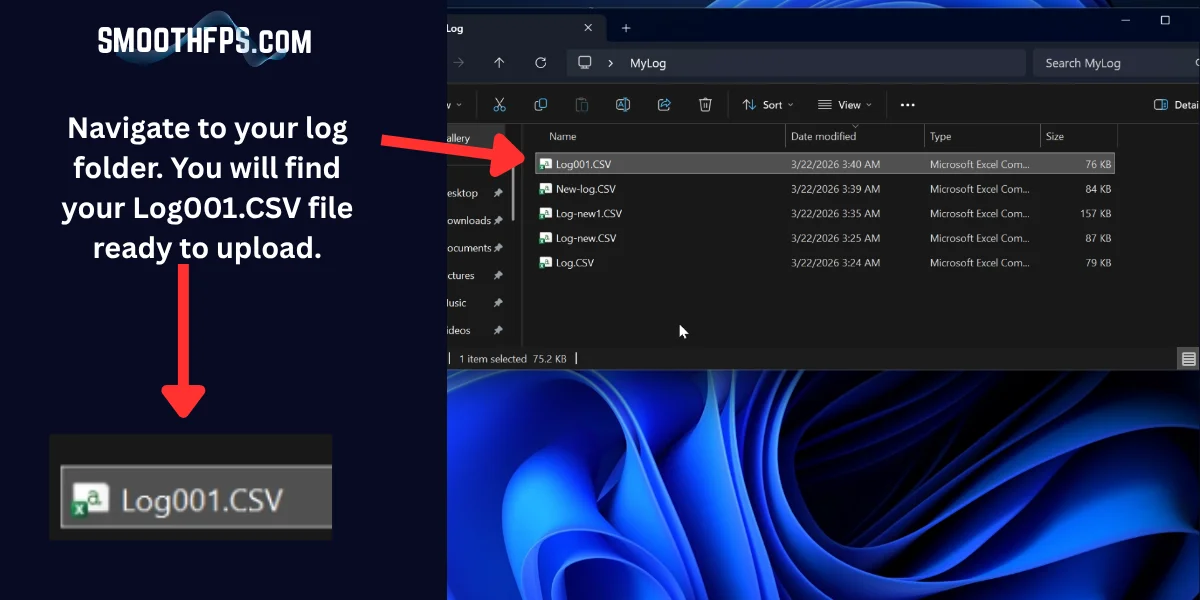
Navigate to the folder where you saved your log. You'll find the Log001.CSV file ready to upload.
Go to SmoothFPS HWiNFO Analysis
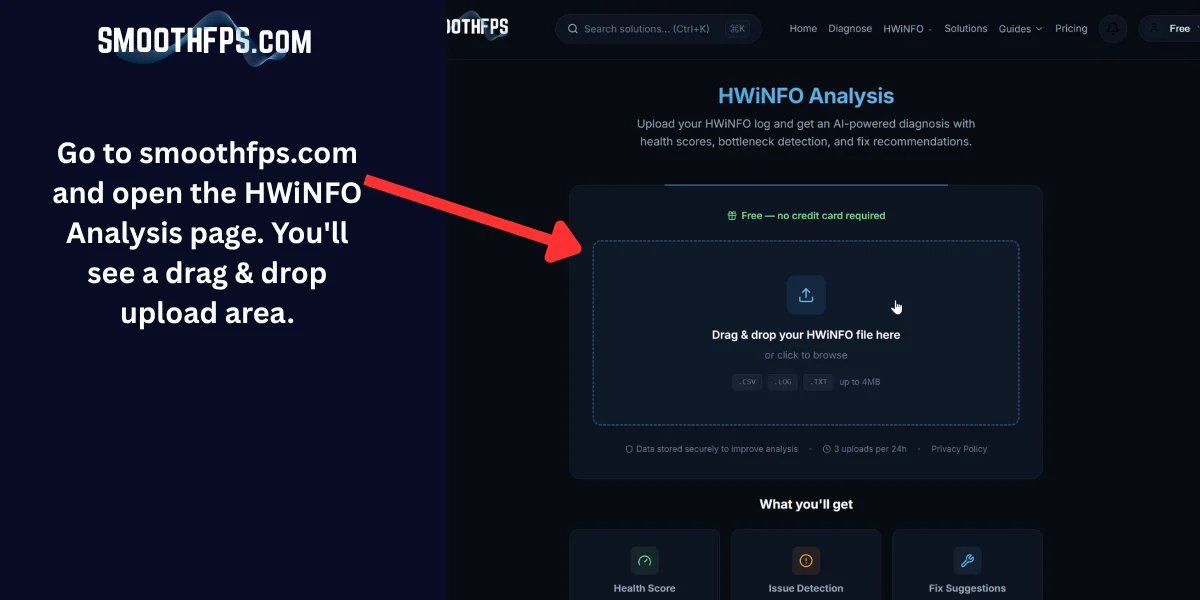
Open smoothfps.com and navigate to the HWiNFO Analysis page. You'll see a drag & drop upload area.
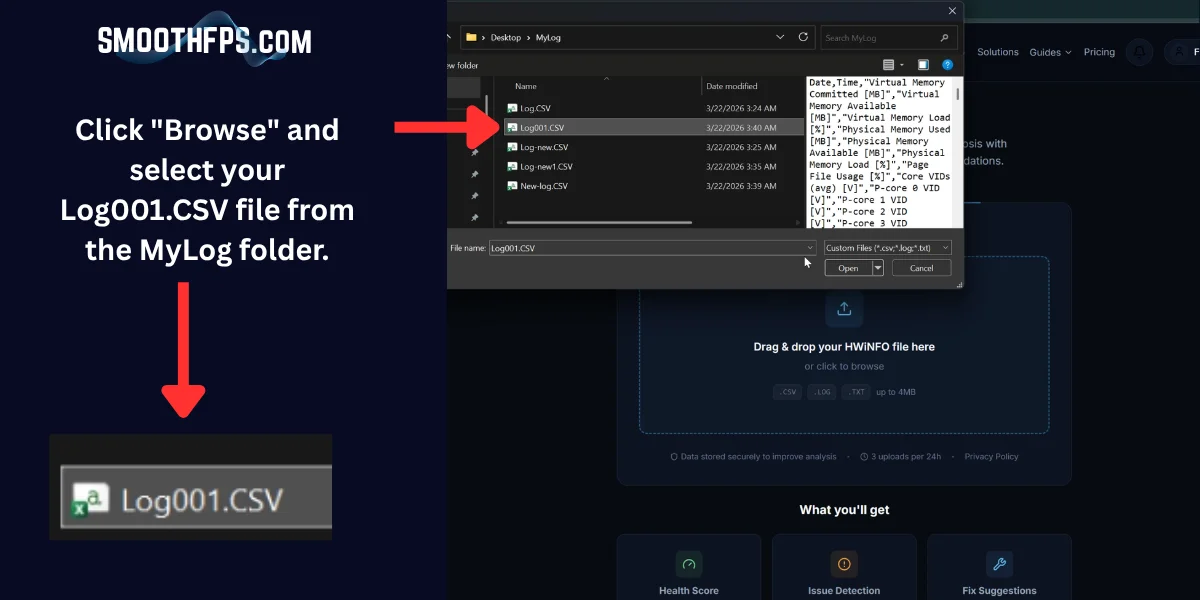
Browse for your file
Click "Browse" and select your Log001.CSV file from the folder where you saved it.
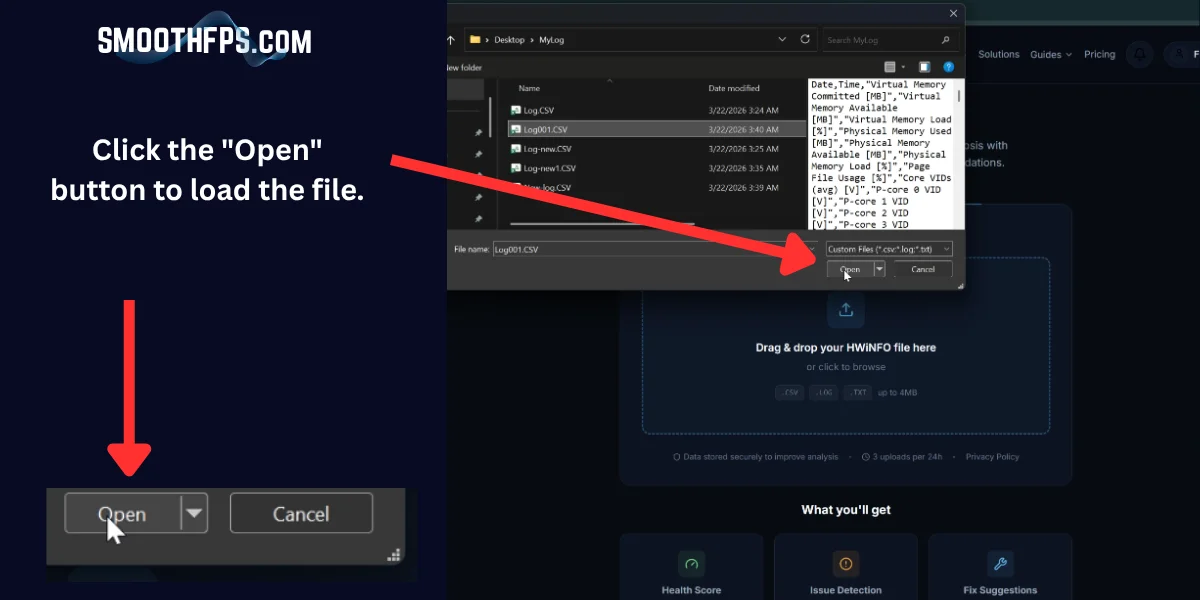
Open the file
Click the "Open" button to load the file.
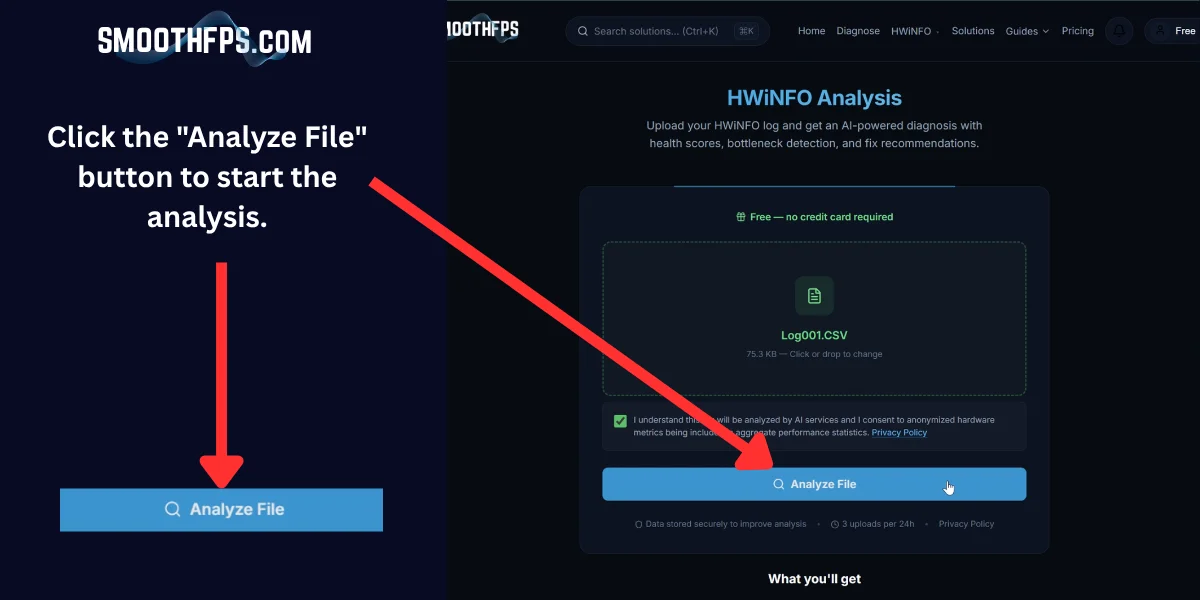
Accept the consent checkbox
Check the consent box that says "I understand this log will be analyzed by AI services..." — your file only contains hardware sensor data, no personal info.
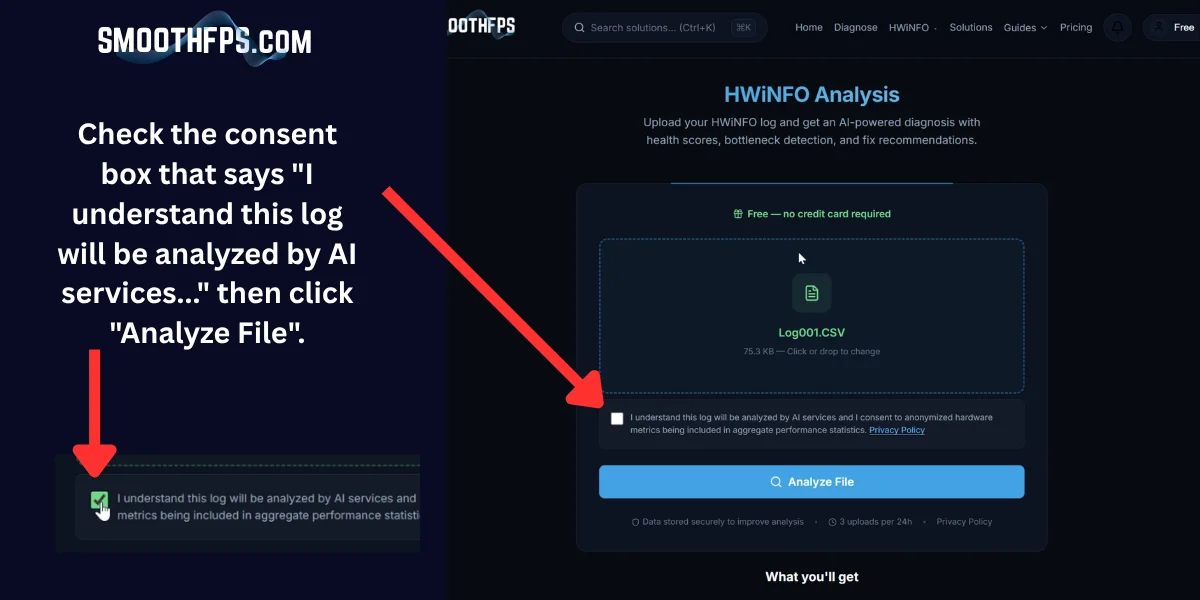
Click Analyze File
Click the "Analyze File" button to start the AI-powered analysis.
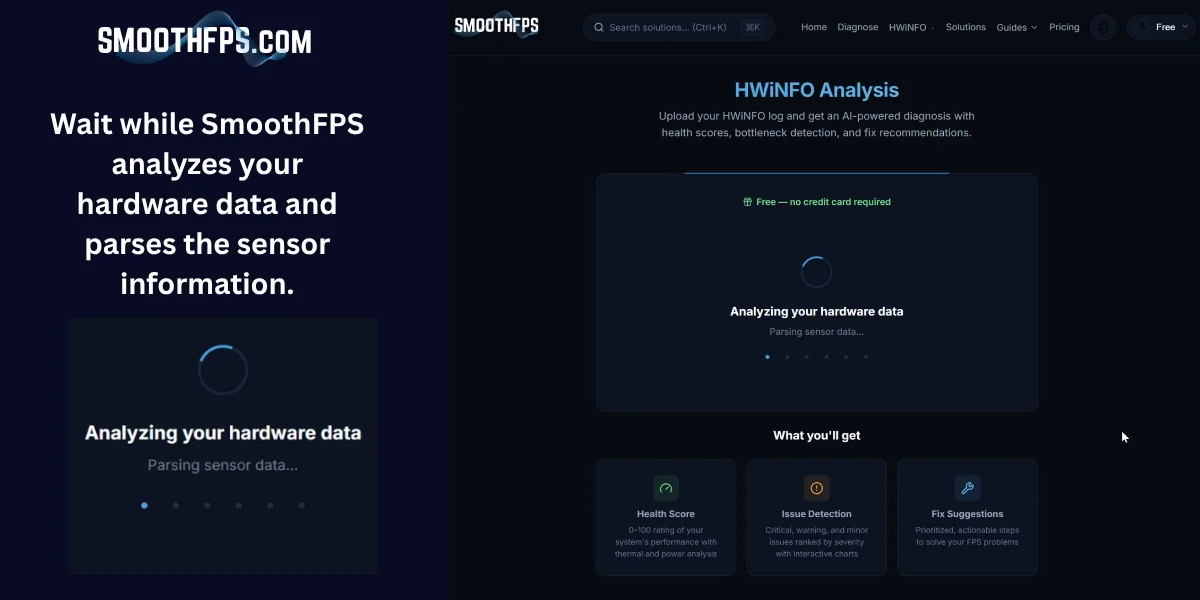
Wait for analysis
SmoothFPS will parse your sensor data and run AI analysis. This usually takes 10–30 seconds.
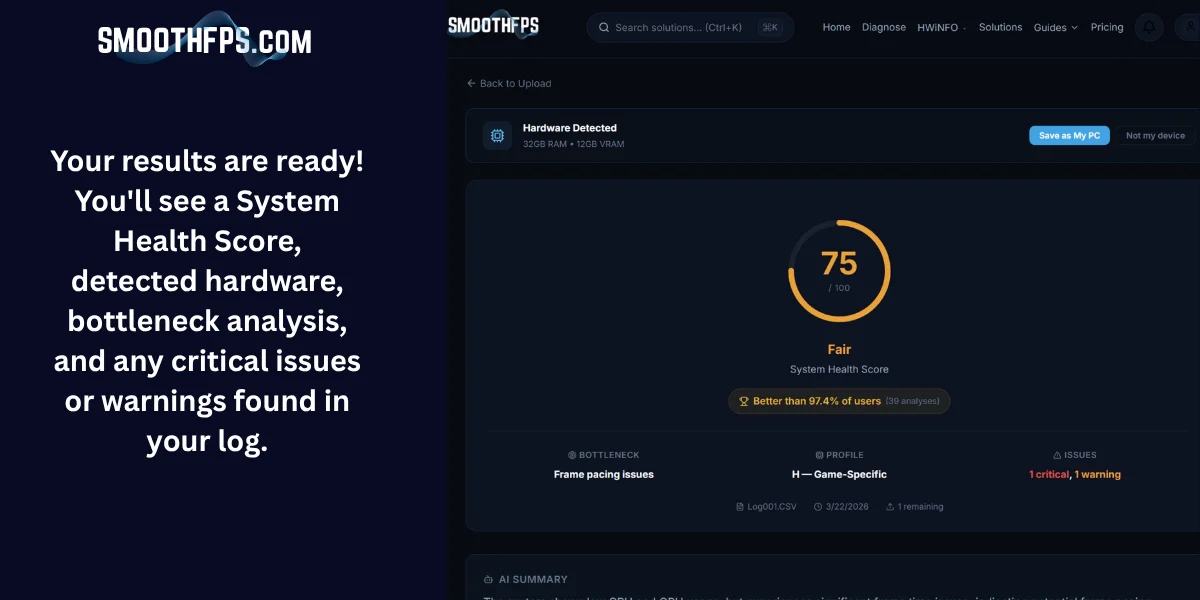
View your results
Your results are ready! You'll see a System Health Score, detected hardware, bottleneck analysis, and any critical issues or warnings found in your log.
Ready to try it? Upload your HWiNFO log now and get an instant AI diagnosis.
Upload Your LogNot sure this is actually your issue?
Upload your HWiNFO log — if any performance issue is the cause, the analyzer confirms it in under a minute with your real sensor data.
Frequently Asked Questions
Do I need to install HWiNFO or can I use the portable version?
Both work. The portable version is easier — just extract the ZIP and run HWiNFO64.exe. No installation needed, and it won't leave anything on your system.
Why do I need to run HWiNFO as administrator?
Administrator access lets HWiNFO read all hardware sensors, including CPU/GPU temperatures, power draw, and throttling flags. Without it, some critical sensors may be hidden or show incorrect values.
What does 'Sensors-only' mode do?
Sensors-only mode skips the full hardware scan and jumps straight to real-time sensor monitoring. It loads faster and uses less resources — exactly what you need for gaming logging.
What polling period should I use?
2000ms (2 seconds) is recommended for most gaming sessions. It captures enough detail without creating oversized files. For more detailed analysis, use 500ms–1000ms, but expect larger CSV files.
How long should I record while gaming?
10–15 minutes is ideal. Make sure to play during the moments when stuttering usually happens — the same map, game mode, or scenario where you notice FPS drops.
My CSV file is very large. Is that normal?
Yes, especially with fast polling (500ms) or long sessions. SmoothFPS automatically trims files that exceed the upload limit, keeping the most useful data. You can also use 2000ms polling to reduce file size.
Can HWiNFO cause stuttering while logging?
Rarely, but it can happen if ASUS EC sensors or SMART disk sensors are enabled. Disable these in HWiNFO settings if you notice new stuttering while logging.
What file format should I save the log as?
Always save as CSV (Comma Separated Values). This is the format SmoothFPS expects for analysis. Make sure the file type dropdown says 'Comma Delimited File (*.CSV)' when saving.